
Help / Owner
Owner guide
Everything an owner does on Manifest Desk, in the order you do it. Sign in at desk.jumpmanifest.com on a laptop or an iPad.
1. Set up your dropzone
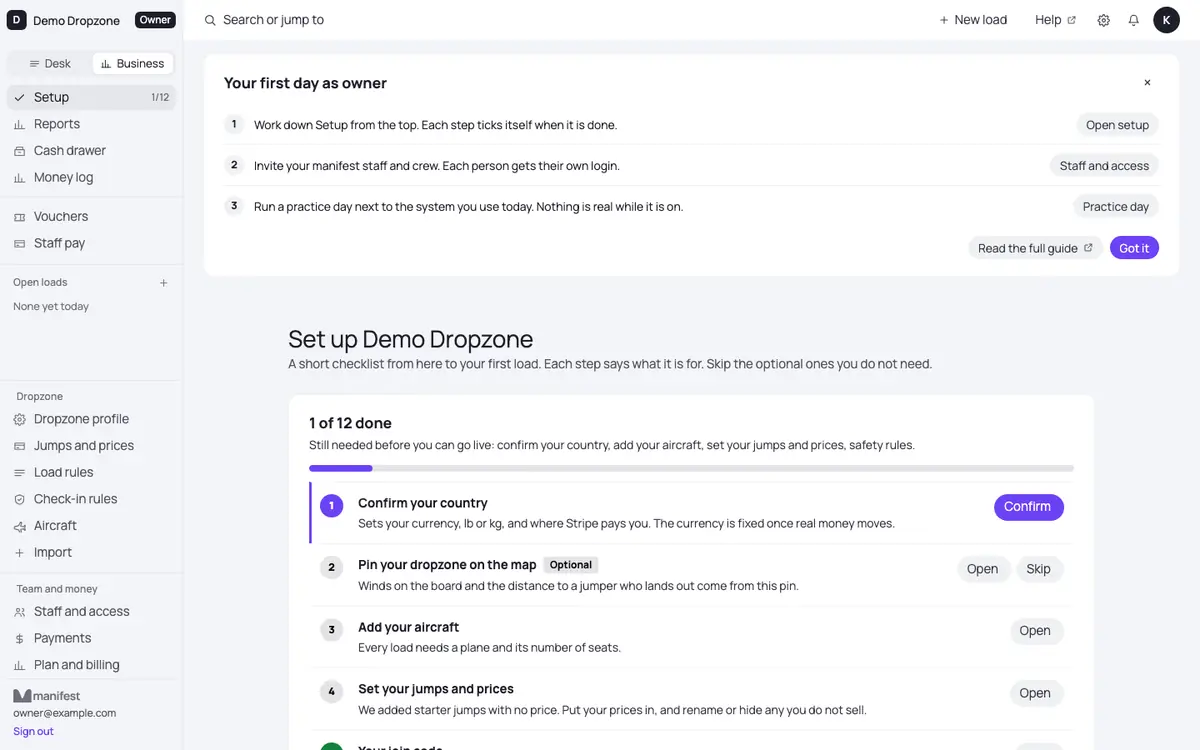
Manifest Desk is invite-only. André makes your dropzone and emails you an invitation. Accept it and the Desk opens on Setup: a checklist from here to your first load. Each step says what it is for and ticks itself when it is done. Optional steps can be skipped.
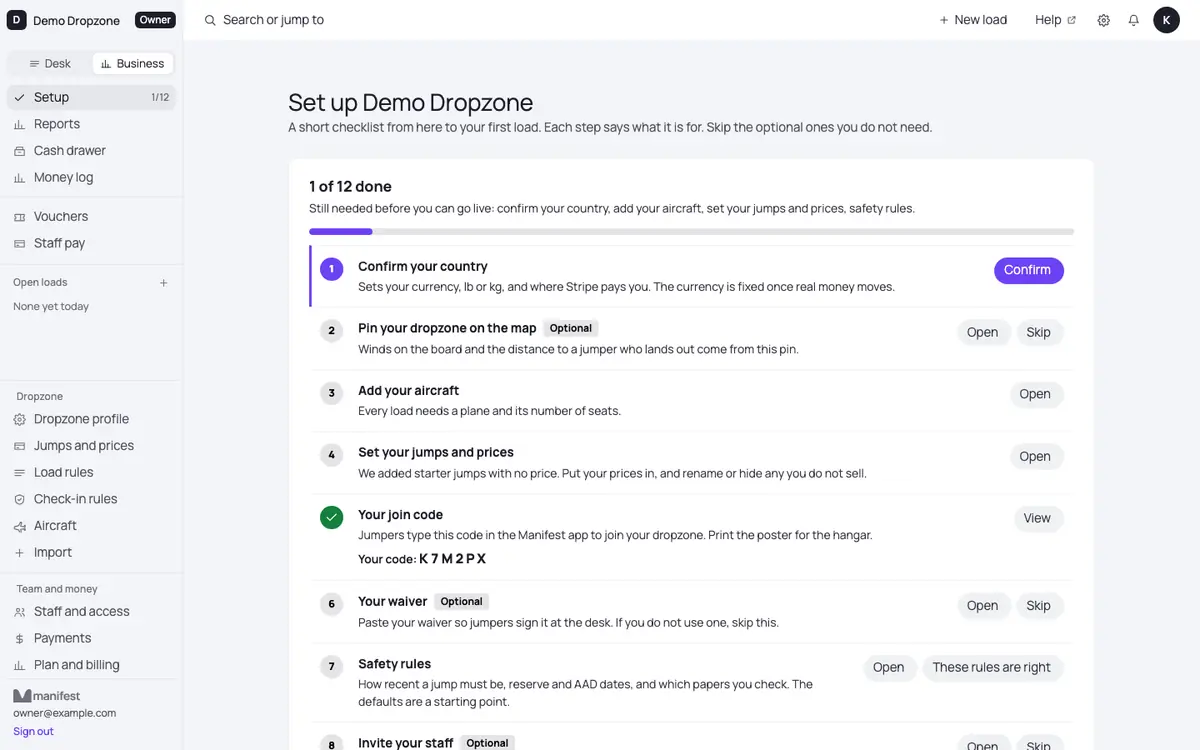
- Confirm your country. It sets your currency, lb or kg, and the country Stripe pays you in. The currency is fixed once real money moves, and the Stripe country cannot change later, so check it twice.
- Pin your dropzone on the map (optional). Winds on the board and the distance to a jumper who lands out come from this pin.
- Add your aircraft. Every load needs a plane and its number of seats.
- Set your jumps and prices. We add starter jumps with no price. Put your prices in, and rename or hide any you do not sell.
- Your join code. Jumpers type it in the Manifest app to join your dropzone. Print the poster for the hangar.
- Your waiver (optional). Paste your waiver text. Jumpers sign it in the app, or at the desk.
- Safety rules. How recent a jump must be, reserve and AAD dates, and which papers you check. Press These rules are right when they are.
- Invite your staff (optional). See Invite your staff.
- Link Stripe (optional). See Stripe, fees, payouts and refunds.
- Bring your jumpers over (optional). See Bring your jumpers over.
- Practice day (optional, but do it). See Practice day.
- Go live. See Go live.
2. Invite your staff
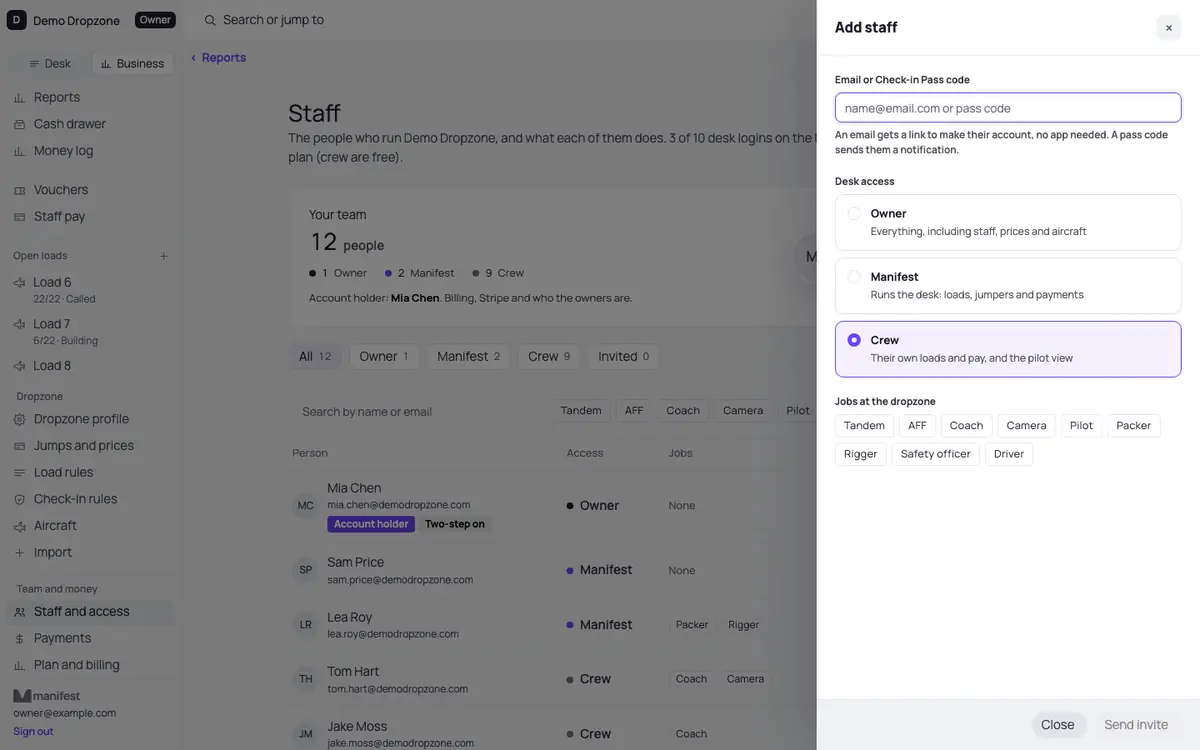
Everyone at the desk signs in with their own account. Open Business, then Staff and access, then + Add staff.
- Type their email, or the code from their Check-in Pass if they use the Manifest app.
- Pick their Desk access: Owner (everything, including staff, prices and aircraft), Manifest (runs the desk: loads, jumpers and payments) or Crew (their own loads and pay, and the pilot view).
- Tick their jobs at the dropzone, like Tandem, AFF, Coach, Camera, Pilot or Packer. Jobs decide who you can put on a load for a jump that needs them.
- Press Send invite. The email link works once and for 7 days. Resend makes a new link.
Open a manifest person to give them more under Manifest can also: refunds, balance adjustments, merge accounts, see money totals and reports, and make new Manifest accounts. All of these are off until you tick them.
Someone leaving or away for the winter: open them and use Pause (seasonal), or Sign them out of the Desk to end their session at once. Access history shows who gave or took access, and when.
3. Bring your jumpers over
Open Business, then Import. Drop the files from your old system, or a spreadsheet: members, balances, jump tickets and blocks, vouchers and gift cards, prices, staff, repack and AAD dates.
- Check the preview. Nothing is written until you tick I have checked this and press Import.
- Read the opening balance report. It shows the totals from your file and says whether the rows written match them to the cent. Check those totals against your old system.
- Press Send invites when you are ready. Nobody gets an email before that. Jumpers new to Manifest get a link to set a password and claim their balance.
You can undo an import. If you keep using your old system for a while, use Update from a new export on switch day so balances match. Imports are off while practice is on, because imports are real data.
4. Practice day
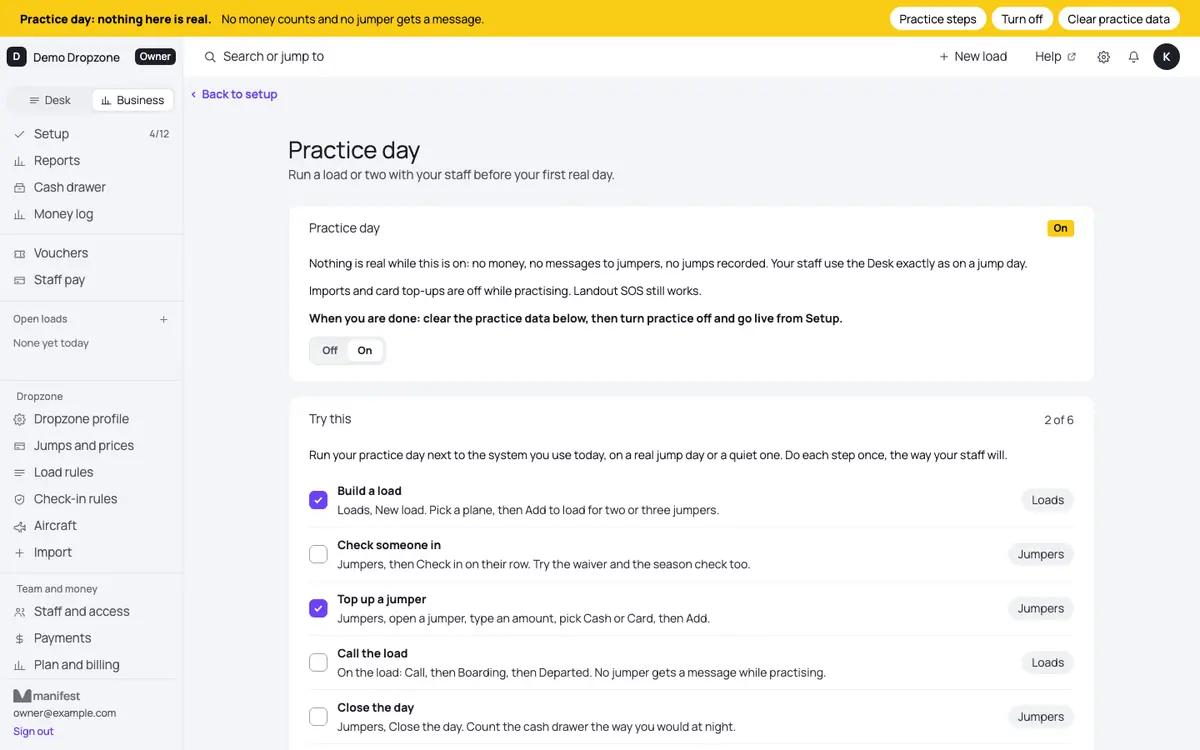
Run a practice day before you go live, next to the system you use today. While practice is on, a yellow bar shows on every screen and on the Load Board. Nothing is real: no money counts, no jumper gets a message, and no jumps are recorded. Imports and card top-ups are off. Landout SOS still works.
Do each step once, the way your staff will on a jump day:
- Turn practice on. Setup, Practice day, On.
- Build a load. Loads, New load. Pick a plane, then Add to load for two or three jumpers.
- Check someone in. Jumpers, then Check in on their row. Try the waiver and the season check too.
- Top up a jumper. Jumpers, open a jumper, type an amount, pick Cash or Card, then Add.
- Call the load. On the load: Call, then Boarding, then Departed.
- Close the day. Jumpers, Close the day. Count the cash drawer the way you would at night.
- Clear practice data. On the Practice day page, Clear practice data. It removes only what was made during practice. Real jumpers, balances and tickets are not touched. Then turn practice off.
5. Go live
When you trust it, press Go live at the bottom of Setup. Only the account holder sees it, and only once practice is off and cleared. From then on everything is real: money counts, jumpers get their calls and their jumps.
6. Stripe, fees, payouts and refunds
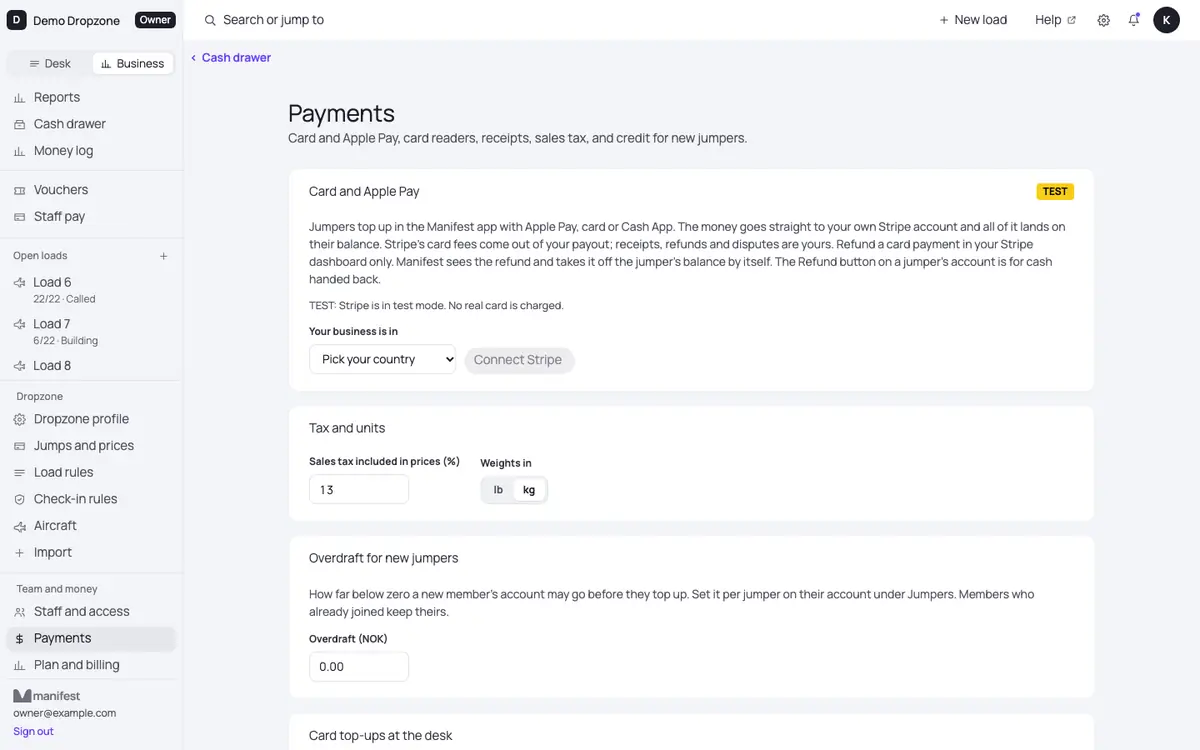
Open Business, then Payments, then Connect Stripe. Jumpers top up in the Manifest app with Apple Pay, card or Cash App. The money goes straight to your own Stripe account and all of it lands on their balance.
- Fees and payouts: Stripe's card fees come out of your payout. Payouts, receipts and disputes are in your Stripe dashboard (Open your Stripe dashboard).
- Refunds: refund a card payment in your Stripe dashboard. The Refund button on a jumper's account in the Desk is for cash or the card machine.
- No Stripe in your country: choose Top-ups at the desk only. The desk takes cash and card at the window.
- Card top-ups at the desk have a daily limit per jumper. Over it, a supervisor approves.
7. Your supervisor PIN
Open your account (the gear at the top), then Supervisor PIN, then Set a PIN (4 to 8 digits). When manifest needs your OK for a refund, an adjustment, a card top-up over the daily limit or a price below the list, you type your PIN on their screen. It approves that one thing within 5 minutes, and your name is kept on the record.
8. Closing the day
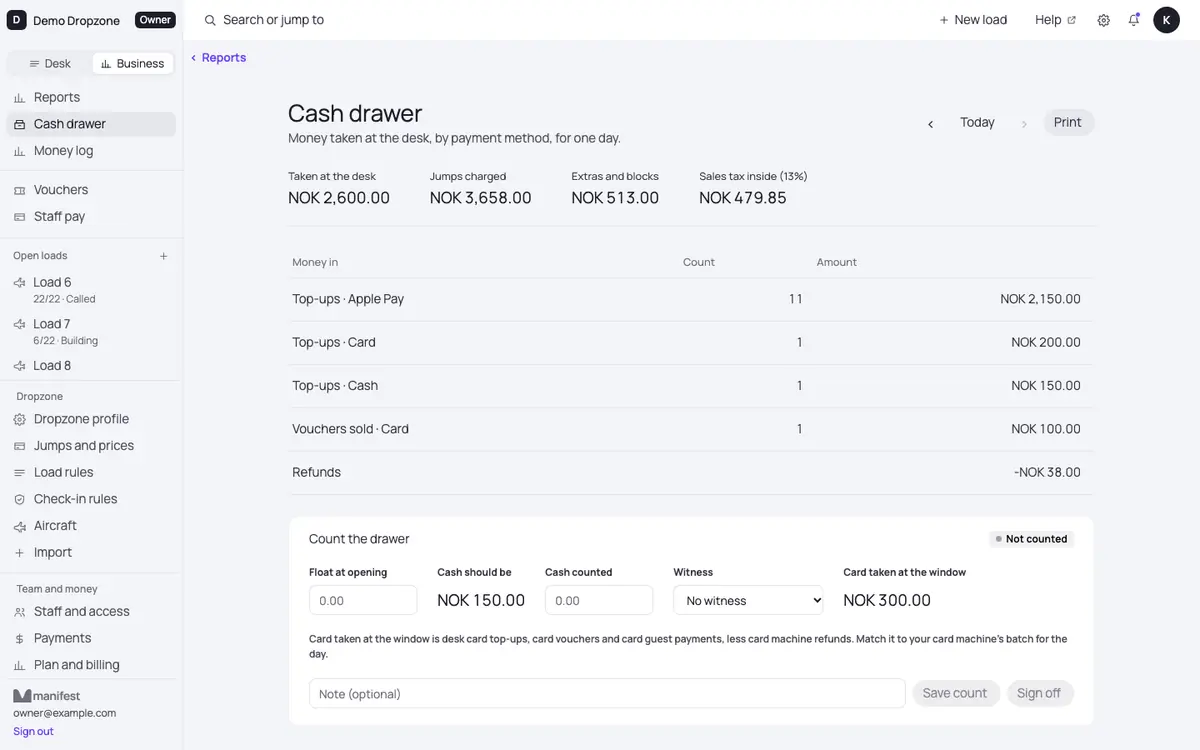
Manifest or you: Jumpers, then Close the day. It lists loads still open, unpaid guests, and the cash drawer. The drawer count is blind: count first, and what it should be shows once you save. Then sign off, and you get a summary of the day on your phone.
Cash drawer in the Business menu shows every day's count. Only an owner can reopen a signed day for a correction, with a reason.
9. Reports and exports
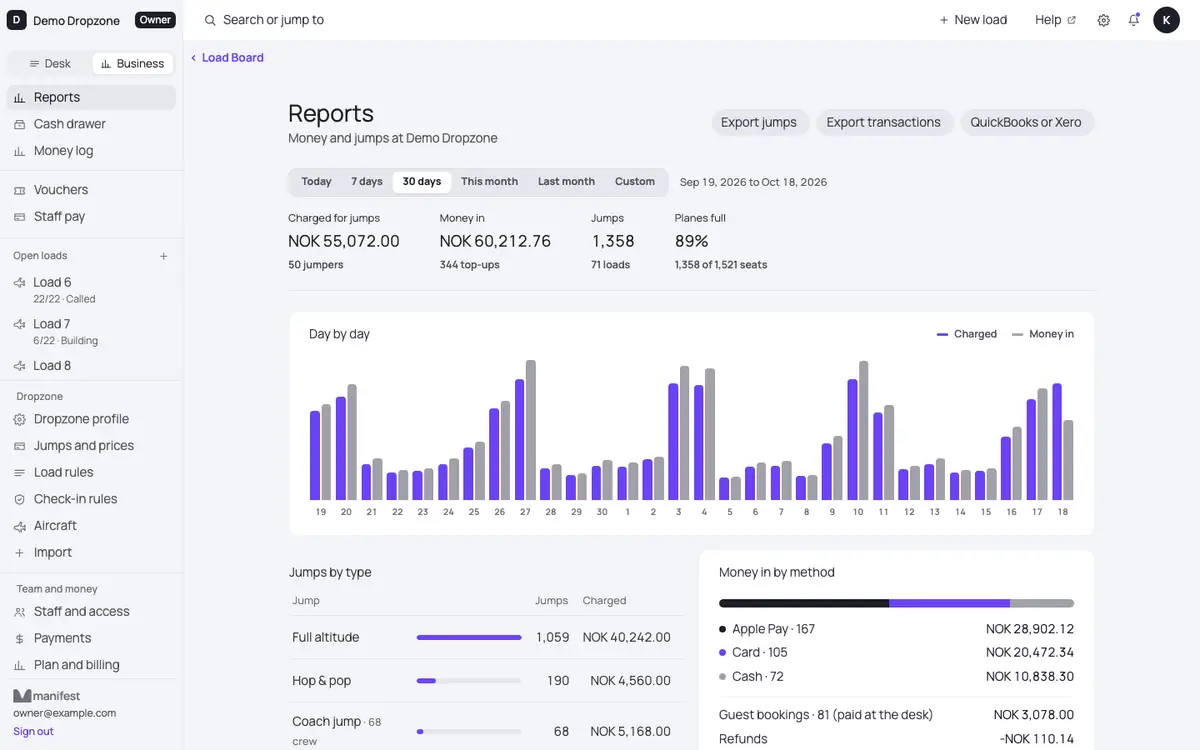
Reports shows money and jumps for any period. Money log lists every money line, who entered it and who approved it.
On the Full-time plan and up you can export: Export jumps, Export transactions and QuickBooks or Xero on Reports, a CSV of the money log and the liabilities, and Export payroll on Staff pay.
To take everything at once, open Your data and press Download everything.
10. The Load Board on a TV
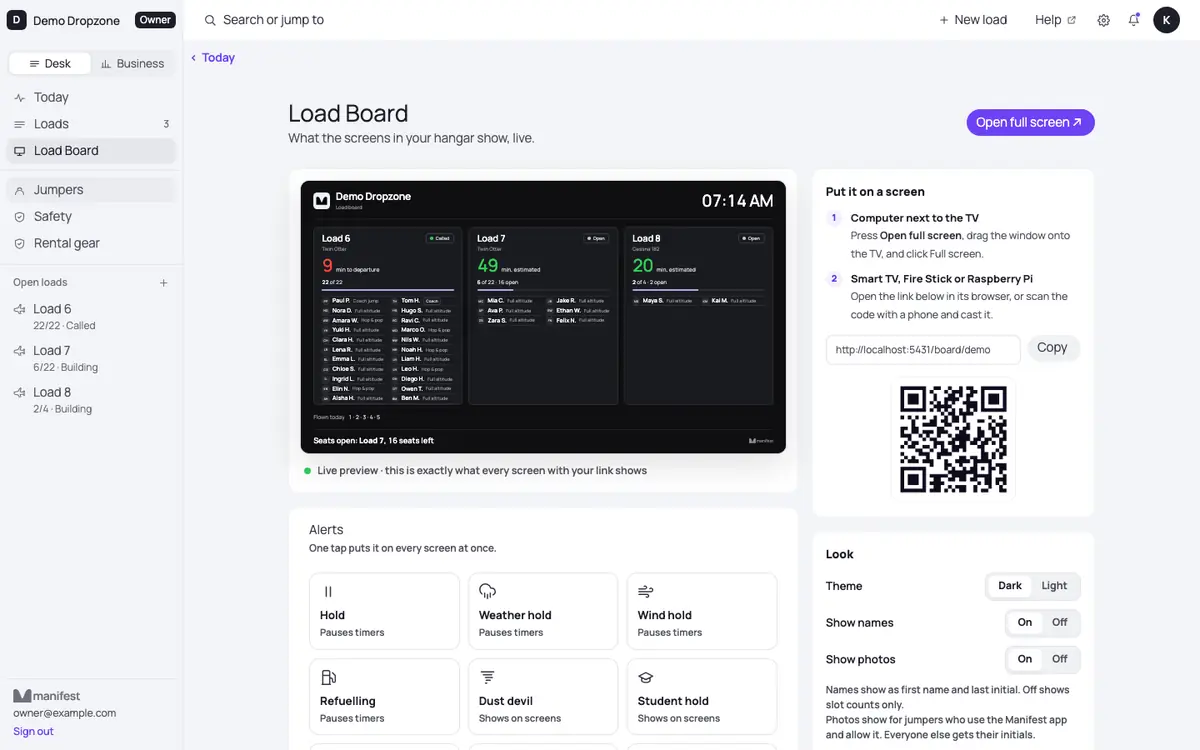
Open Load Board. On a computer next to the TV, press Open full screen and drag the window onto the TV. On a smart TV, Fire Stick or Raspberry Pi, open the board's link in the browser, or scan the code with a phone. The TV needs no sign-in. Reset link makes a new link and every screen on the old one stops.
The Alerts tiles put a hold, a weather hold or a sunset load on every screen at once.
11. If you cancel
Your data is yours. You can download everything at any time, and there is nothing to sign to leave.
- When you close your dropzone (Your data, then Close this dropzone), everything is kept but frozen, read-only, for 90 days. You can still sign in, look and download everything, or come back and carry on.
- After 90 days it is deleted, except the records the law makes us keep, such as signed waivers and payments. Those are kept anonymised.
- If a jumper deletes their Manifest account, your records of their jumps and payments stay with you, under the name you knew them by.
12. Help inside the Desk
Help at the top of every Desk page opens the guide for your role. Each new owner, manifest and crew login also gets a first-day card on their first screen. It goes away when they press Got it.
Still stuck?
Email andre@manifestjump.com with your dropzone's name in the subject. We reply to dropzones the same day.