
Help / Manifest
Manifest guide
For the people at the desk on a jump day. Everything here works on a laptop or an iPad at desk.jumpmanifest.com.
1. Your first sign-in
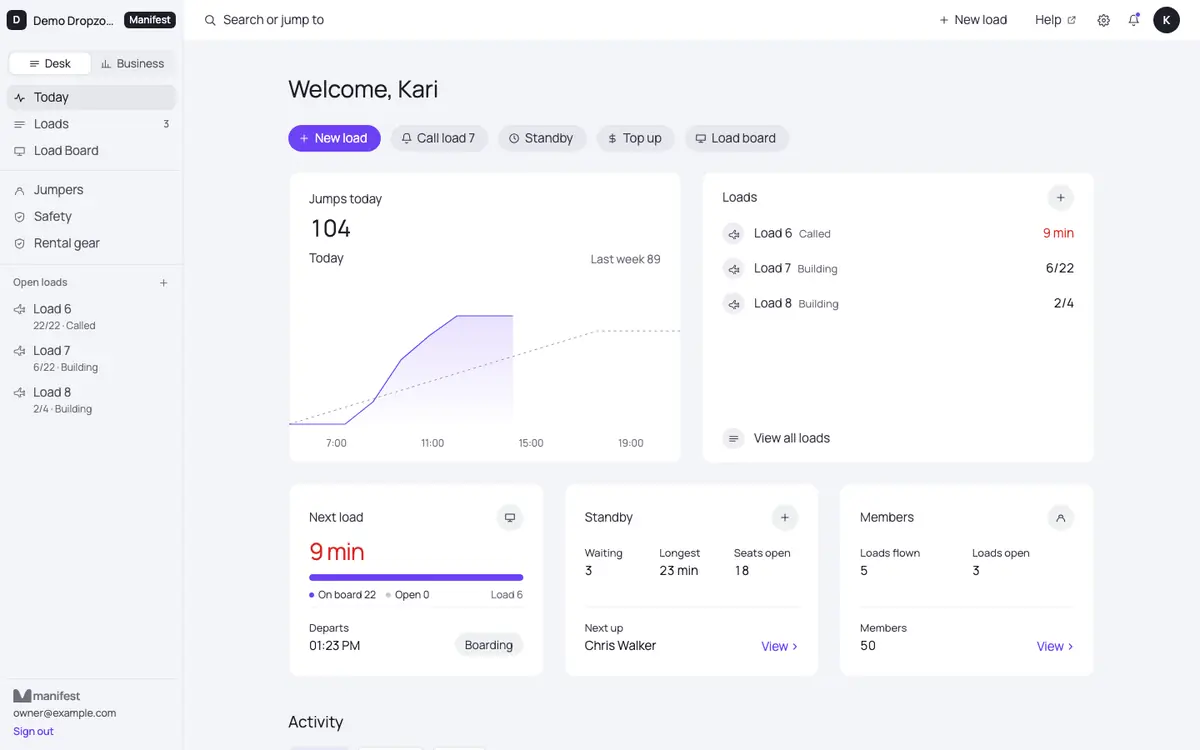
Your owner invites you by email. Open the link, set a password and you are in. The link works once and for 7 days; if it ran out, ask the owner to press Resend. You land on Today: the next load, standby, and buttons for New load, Call, Standby, Top up and the Load board. Search at the top (⌘ K) finds jumpers, loads and pages.
2. Build a load
- Press New load (top bar, Today or Loads). Pick the aircraft and who sees it: Jumpers and desk, or Desk only. Press Create load.
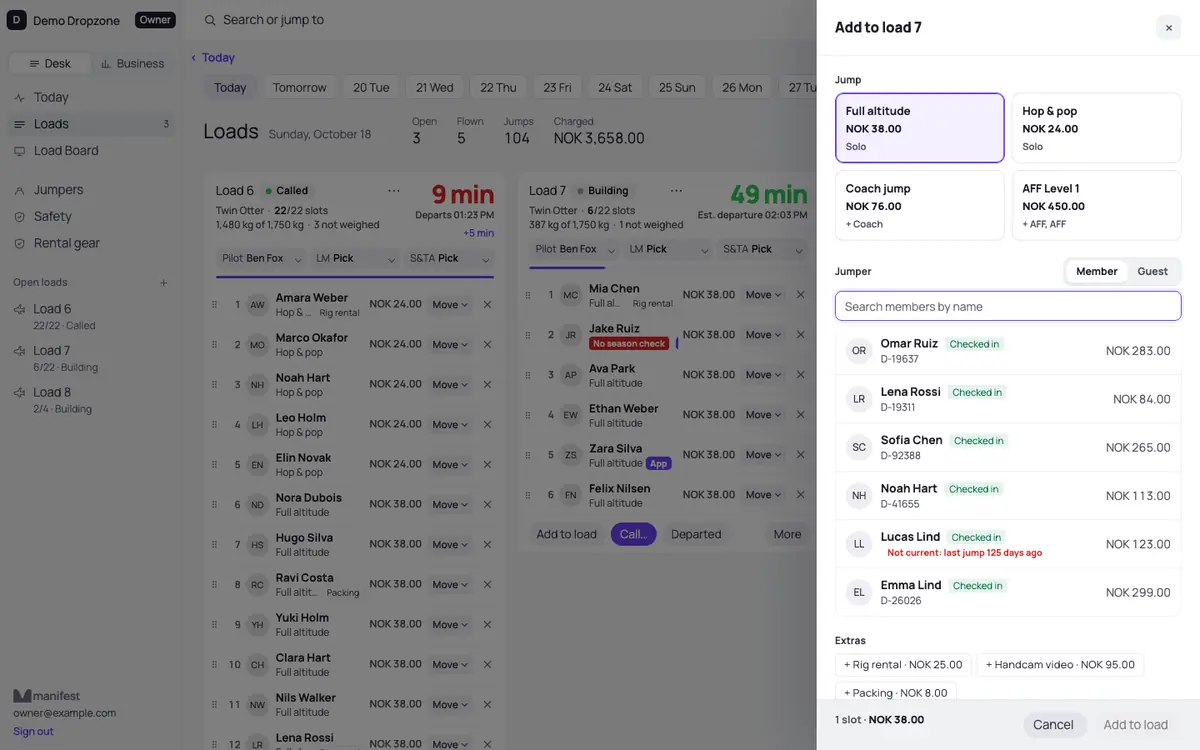
- On the load, press Add to load. Pick the jump, then the jumper: search a Member by name, or add a Guest with their full name.
- If the jump needs crew (a tandem, AFF or coach jump), pick them in the Crew boxes. Add extras like a rig rental, then Add to load.
Drag a booking from one load to another, or drag a standby card onto a load. If a safety rule says no, the button reads Override and add where your owner allows it, and your name is kept on the booking.
3. Call the load
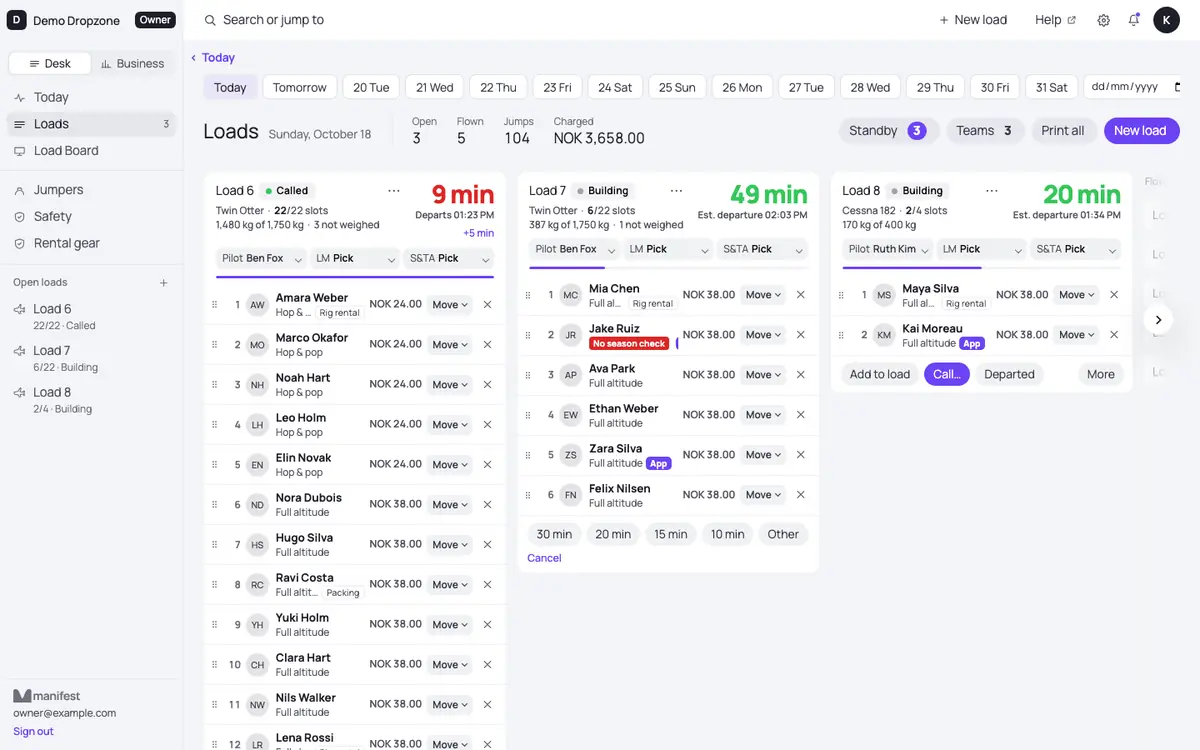
- Press Call on the load and pick the minutes (30, 20, 15 or 10, or Other). Everyone on it gets a push on their phone. +5 min moves it.
- Press Boarding when they walk to the plane.
- Press Departed when it takes off. That is when member jumpers are charged and the jump shows in their Manifest app.
Cancel load (under More) charges nobody.
4. Check jumpers in
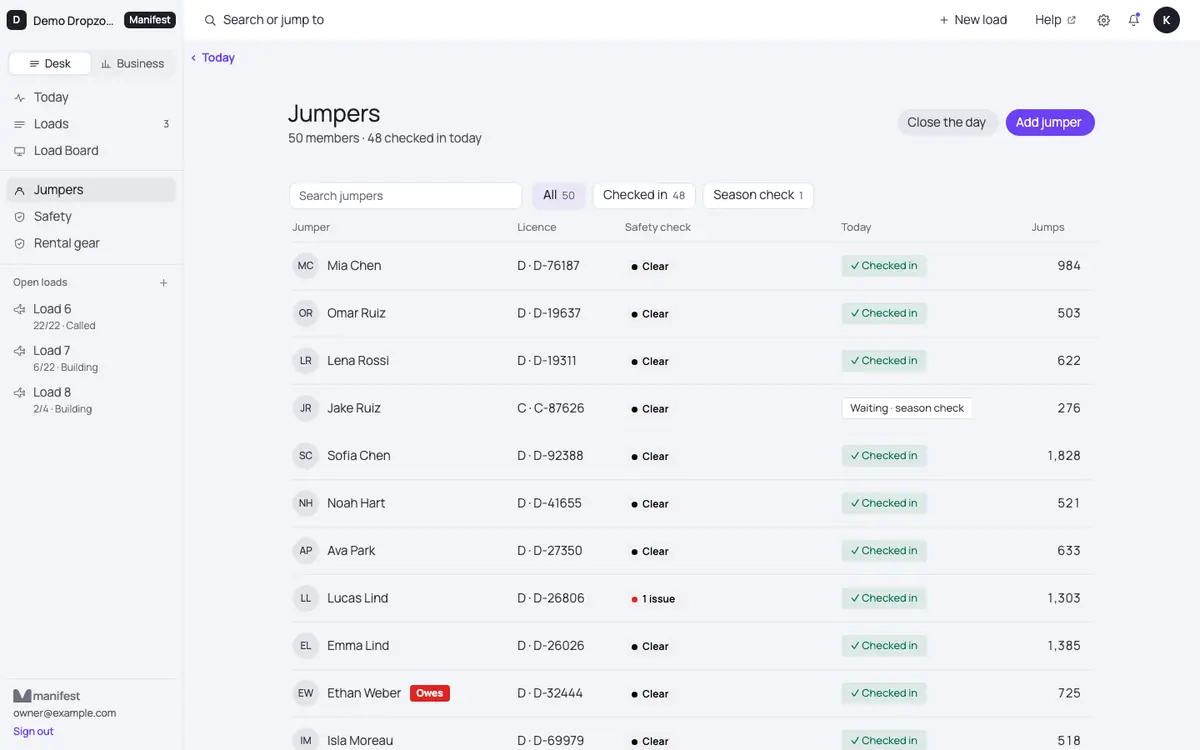
Open Jumpers and press Check in on their row. If something is wrong, a box says what: no waiver signed, a waiver that ran out, or not cleared to jump. You can open their account, let them sign the waiver on your screen, or check them in anyway where your owner's rules allow it.
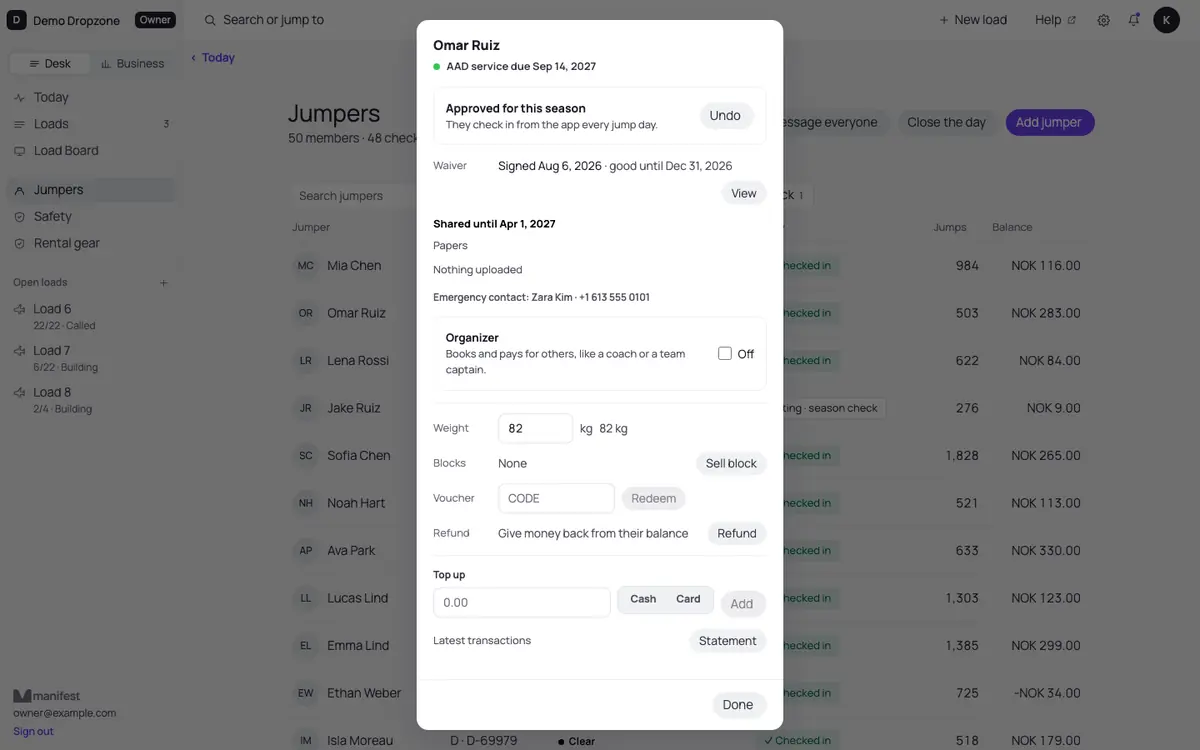
Once a season each jumper needs a season check. Open them, look at their papers and press Approve for this season. Their papers show only if they shared them in the app. If not, ask to see them at the desk.
5. Top up at the window
- Open the jumper on Jumpers.
- Type the amount under Top up.
- Pick Cash or Card (or Reader if your card reader is on). Nothing is picked for you, on purpose, so the drawer stays right.
- Press Add.
A card top-up over the daily limit needs a supervisor: the owner types their PIN on your screen.
6. Sell tickets and vouchers
Jump tickets: open the jumper, then Sell block. Pick the jump, the number of jumps, the price and how they paid (cash, card or from their account), then Sell.
Vouchers and gift cards (Full-time plan and up): Vouchers, Sell voucher, a jump or an amount, then Sell and print it. To use one, type its code in the jumper's account and press Redeem.
7. Guests and waivers
A guest is someone without a Manifest account. Add them with Guest in Add to load. Their booking shows Unpaid; tap it to take cash, card, the reader, or a pay link.
A jumper with no app (or no iPhone) can still have an account: Jumpers, Add jumper, No app yet, with their name and email. They get an email to set a password. This needs the owner, or the owner's OK for you to make accounts.
Waivers: jumpers can sign the dropzone's waiver in the Manifest app. The desk is the backup: Sign waiver on the check-in box, and they sign with a finger on your screen.
8. Close the day and the drawer
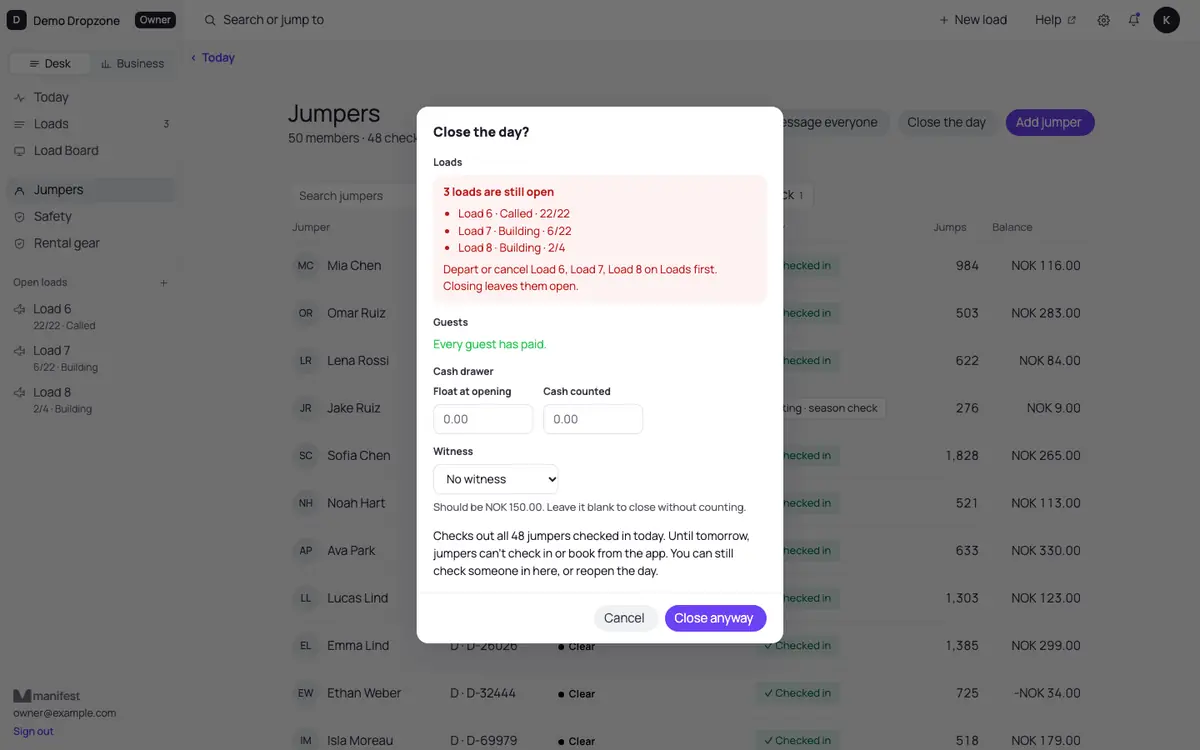
- Jumpers, then Close the day.
- Deal with what it lists: loads still open, unpaid guests.
- Count the cash drawer: the float at opening, the cash counted, and a witness. The count is blind: what it should be shows once you save.
- Press Close and sign off. The owner gets a summary of the day on their phone.
9. When the internet drops
An Offline bar shows at the top. The loads keep working: check-ins, calls, boarding and departures you make are saved on this computer and sent when the internet is back.
Money is never saved for later. Write cash and card top-ups on paper and enter them when you are back online. If a top-up was on its way when the line dropped, press Add again once you are online. It will not be added twice.
10. Why money totals are not on your screen
The owner decides who sees the dropzone's money. Without that, you see one jumper's balance at a time when you open them, and an Owes tag in the list. Reports, the cash drawer total and the money log are for the owner, or for staff the owner gave See money totals and reports.
11. Standby and holds
Standby on Loads or Today: add a member, a guest or a team, first come first served. Drag a card onto a load, or press Fill loads.
Holds live on the Load Board page under Alerts: a hold, weather hold, wind hold or refuelling pauses the timers and shows on every screen.
Still stuck?
Ask your owner, or email andre@manifestjump.com with your dropzone's name in the subject.